
Till the middle of 2026, like many of you, I have been using cwRsync as the replacement rsync command under Windows. Suddenly, cwRsync disappeared from everywhere. The official website link redirects to a commercial cwRsync-Server product page. Github repo is gone (404) and consequently, package managers like Scoop removed cwRsync from their catalog. As I heavily depend on rsync and a working setup is necessary, this got me into quite a trouble.
There exists a package for rsync in the msys2 Cygwin distribution. But getting everything working perfectly in orchestration with OpenSSH and SSH Agent was not pretty straightforward. I had to try a few tools and specific techniques to reach the goal.
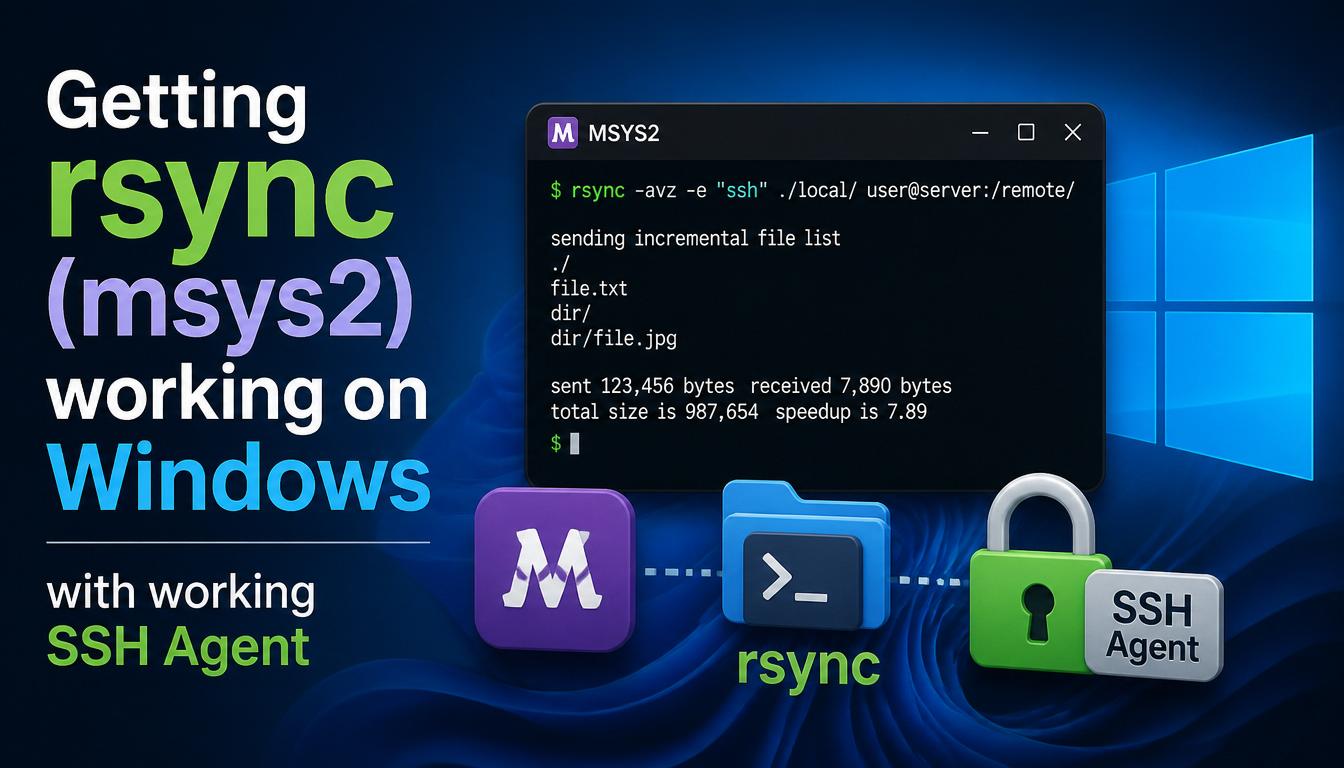
First, I tried to get the msys2 build of rsync working.
Using Scoop package manager:
> scoop install msys2
> msys2
Inside msys2:
$ pacman -S rsync
$ rsync -V
rsync version 3.4.4  protocol version 32
...
Wow! We got a pretty recent build of rsync under Windows. So good to be true? Right, there’s a catch. This msys2 build of rsync will try to use native Windows or Git OpenSSH binary to connect to the remote end. But, those two are not very much compatible. E.g.
> ...\msys2\current\usr\bin\rsync.exe -avn . remote.example.com:/tmp
rsync: connection unexpectedly closed (0 bytes received so far) [Receiver]
rsync error: error in rsync protocol data stream (code 12) at io.c(232) [Receiver=3.2.7]
rsync: connection unexpectedly closed (0 bytes received so far) [sender]
0 [sig] rsync 2123! sigpacket::process: Suppressing signal 30 to win32 process (pid 29208)
rsync error: error in rsync protocol data stream (code 12) at io.c(232) [sender=3.4.4]
To fix this, we got to force rsync to use the msys2 build of openssh. Installing openssh inside msys2:
$ pacman -S openssh
$ ssh -V
OpenSSH_10.3p1, OpenSSL 3.6.3 9 Jun 2026
...
At this point, running below command with -e /usr/bin/rsync to override the ssh command would suffice.
$ rsync.exe -e "/usr/bin/rsync" -avn . remote.example.com:/tmpBut this is not as convenient as running only rsync <src> <dst> during day to day operations. On top of that, it is easy to forget the switch now and then.
If you depend on SSH Agent like me, then also note that ssh inside msys2 doesn’t talk to the native SSH Agent pipe (//./pipe/openssh-ssh-agent) under Windows.
So, we will make a PowerShell script to wrap the actual command. First, we override the PATH so rsync prefers its own ssh instead of the Windows native one. Then, we will also override SSH_AUTH_SOCK. The complete code to put inside rsync.ps1 is:
# backup environment variables
$winSshSock = "$env:SSH_AUTH_SOCK"
$winPath = "${env:PATH}"

$cwSshSock = "${env:LOCALAPPDATA}/ssh-agent-bridge-cw.sock"
$msysRoot = "${env:LOCALAPPDATA}\Scoop\apps\msys2\current"

if (-not (Test-Path $msysRoot)) {
    foreach ($alt in @("C:\msys64", "C:\msys32", "C:\msys2")) {
        if (Test-Path $alt) {
            $msysRoot = $alt
            break
        }
    }
}
if (-not (Test-Path $msysRoot)) {
    Write-Error "msys2 not found"
    return
}
if (-not (Test-Path "${msysRoot}\usr\bin\rsync.exe")) {
    & "${msysRoot}\usr\bin\pacman.exe" -S rsync
}
if (-not (Test-Path "${msysRoot}\usr\bin\rsync.exe")) {
    & "${msysRoot}\usr\bin\pacman.exe" -S openssh
}
try {
    $env:PATH = "${msysRoot}\usr\bin;${env:PATH}"
    $env:SSH_AUTH_SOCK = & "${msysRoot}\usr\bin\cygpath.exe" -a "${cwSshSock}"
    & "${msysRoot}\usr\bin\rsync.exe" @args
} finally {
    # restore environment variable overrides
    $env:SSH_AUTH_SOCK = "$winSshSock"
    $env:PATH = "$winPath"
    exit $LASTEXITCODE
}
Accompanying rsync.cmd to put beside rsync.ps1 to support Command Prompt invocations as well:
@echo off
setlocal enabledelayedexpansion
where /q pwsh.exe
if %errorlevel% equ 0 (
    set "PS_EXE=pwsh"
) else (
    set "PS_EXE=powershell"
)
set "EXEC=%~n0"
set "EXEC=!EXEC:.exe=!"
!PS_EXE! -noprofile -ex unrestricted -file "%~dp0!EXEC!.ps1" %*
We will put both rsync.ps1 and rsync.cmd somewhere covered by the Windows PATH environment variable. E.g. I have a dedicated %USERPROFILE%/Settings/Windows/Bin folder for this purpose like $HOME/bin in Unix-like environments, and I have it added to PATH via sysdm.cpl ▸ Advanced ▸ Environment Variables. Creating script file based handlers instead of defining functions or aliases ensures that these commands are available to all shells including task runners like mise-en-place or Taskfile.
This will launch the rsync program from inside msys2 whenever we invoke rsync from inside any terminal under Windows sub-environment, and instruct it to use ~/AppData/ssh-agent-bridge-cw.sock socket for SSH Agent based authentication.
To host this socket proxy which would link back to the system default SSH authentication pipe, we will use amurzeau/ssh-agent-bridge. Also make sure that you are running a Native SSH Agent for the proxy to connect back to. Either the Windows OpenSSH Agent, or a modern Password+Secret Manager like Bitwarden can provide this final SSH Agent service.
Install ssh-agent-bridge with scoop from my bucket:
> scoop bucket add shanto https://github.com/shanto/Scoop
> scoop install shanto/ssh-agent-bridge
This package will create a shortcut under shell:startup (Start Menu > Programs > Startup) named SSH Agent Bridge which wraps amurzeau/ssh-agent-bridge with appropriate switches. Check Task Manager or Tray area to make sure that ssh-agent-bridge-noconsole.exe is running. Also check %LOCALAPPDATA% for the presence of the ssh-agent-bridge-cw.sock file.
Add your key(s) ssh-add ~/.ssh/id_ed25519 if not already added, and then, check if your SSH Agent is serving your keys:
$ ssh-add -l
3072 SHA256:... ssh-rsa-2025 (RSA)
256 SHA256:... ssh-ed-2026 (ED25519)
If everything went well so far, then rsync should just work!
$ rsync -avn ./ remote.example.com:/tmp/
sending incremental file list
./
omnissh-wsl2.init
ssh-agent-bridge.json
wsl2-ssh-agent.init

sent 179 bytes  received 28 bytes  46.00 bytes/sec
total size is 2,738  speedup is 13.23 (DRY RUN)
No authentication prompt in terminal because my Bitwarden SSH Agent is providing the keys to the ssh program insde msys2 through the socket proxy we setup earlier. The same is also achievable with Native Windows OpenSSH Auth agent. However, I prefer Bitwarden because it allows me to confirm new or unseen access attempts by on a program by program basis.
Summary
- Both
rsyncandsshshould bemsys2distribution binaries. Do not mix with Windows native builds. - To force
rsyncto use the correctsshbinary, override path before invocation. - To get SSH Authentication Agent support right, override SSH_AUTH_SOCK environment variable with a Cygwin compatible socket.
- Use a bridge or proxy like amurzeau/ssh-agent-bridge or masahide/OmniSSHAgent to host a Cygwin compatible SSH Agent socket proxy.
Hopefully this article helps readers to get rsync working on Windows. In my next article, I will outline the entire process of getting the SSH agent working under all Windows sub-environments– Terminal/PowerShell, msys2 and WSL2.
Technology Definitions
Why
Rsync or cwRsync
Originating from the Unix world, rsync is an extremely fast and highly flexible command line program used for file synchronization either on a local system or between two remote computer systems. Rsync is well-known for its delta transfer capability, which allows file transfer of the differences only. Typically, rsync depends on OpenSSH to establish secure channels over public networks. Along with Unison for heavier and complex synchronization jobs, I depend on rsync every day! cwRsync was the Cygwin build of rsync specially tuned to work with Windows native stack.
Why
Msys2
For end-users, msys2 is a Cygwin based lightweight distribution environment which allows running Unix-like software directly on top of Windows by translating Unix API calls to native equivalents. This is yet another building block that I use on every Windows environment to allow me run many essential tools originating from Mac or Linux. It comes with the pacman package manager having same command syntax as Arch Linux. While WSL2 provides complete Linux support, msys2 is the lighter alternative suitable for quick, one-off commands and tasks.
What is
OpenSSH
OpenSSH is the suite of tools like ssh, sshd, ssh-keygen, scp, sftp. It is the industry standard for remote system administration and is pre-installed on most macOS and Linux systems. It allows secure access to remote systems, command execution, and files transfers across unsecured networks by encrypting all traffic to prevent eavesdropping and hijacking. Unfortunately, in Windows environments, OpenSSH comes bundled with individual software packages, and they frequently suffer from conflicts.
What is
Bitwarden
Bitwarden is a password and secret manager which is cross-platform and easy to integrate almost anywhere. It is one of the first tools I install into fresh computers, browsers and smartphones. All of passwords, TOTP keys, SSH keys, secrets, notes and credit card numbers are securely organized and stored by Bitwarden. No matter from where I access, I get the same set of data synchronized everywhere almost in real-time. SSH Agent is yet another rare feature it offers.


Leave a Reply